Partner Portal Features
Welcome to the Qualys partner portal. Here you will find a walk-through of the features available in our partner portal today, where they can be found and how to best utilize the tools.
1. Partner portal homepage:
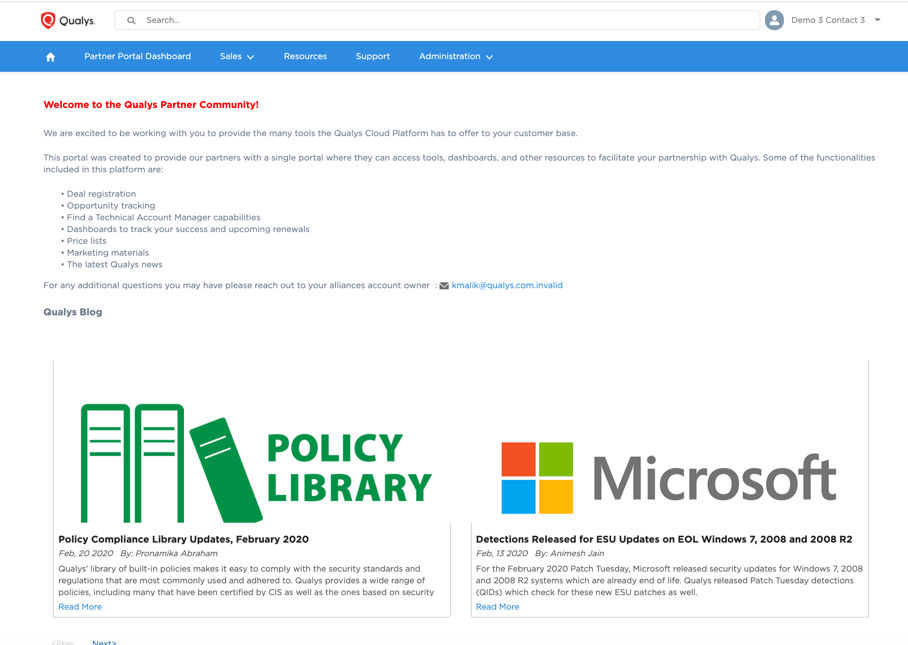
On this page you will find an introduction to the partner portal and some features the portal gives access to. At the end of our welcome message you will see who your alliance account owner is, this will be your main point of contact at Qualys. Your account owner can help answer questions you may have, as well as connect you with TAMs and product managers when needed.
Below our message you have access to our Qualys Blog. The Blog will share the latest news, releases and articles posted by Qualys. You can click on the next button below the two blog posts to explore older posts.
2. Partner Portal Dashboard
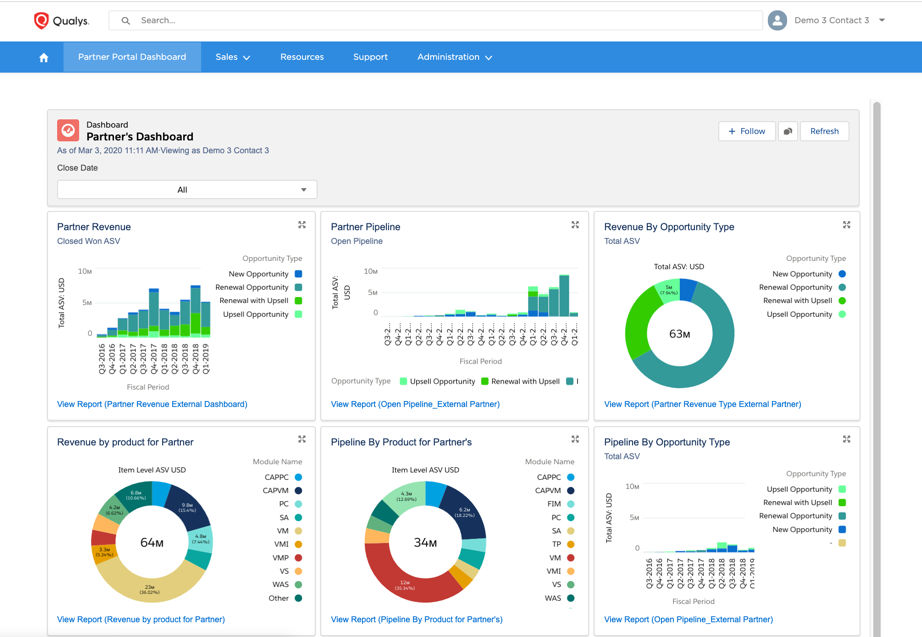
Using the tab bar located below the search functionality, you can easily navigate to the main sections of the portal. Clicking on "Partner Portal Dashboard" located directly to the right of the home icon, you will access a page similar to the one shown below. This page will give you better visibility into your current sales, pipeline, products sold, upcoming and missed renewals to name a few.
Each widget has the option to "View Report" this will allow you to dive deeper into the data that is utilized to build the report.
3. Sales- Customer Opportunities
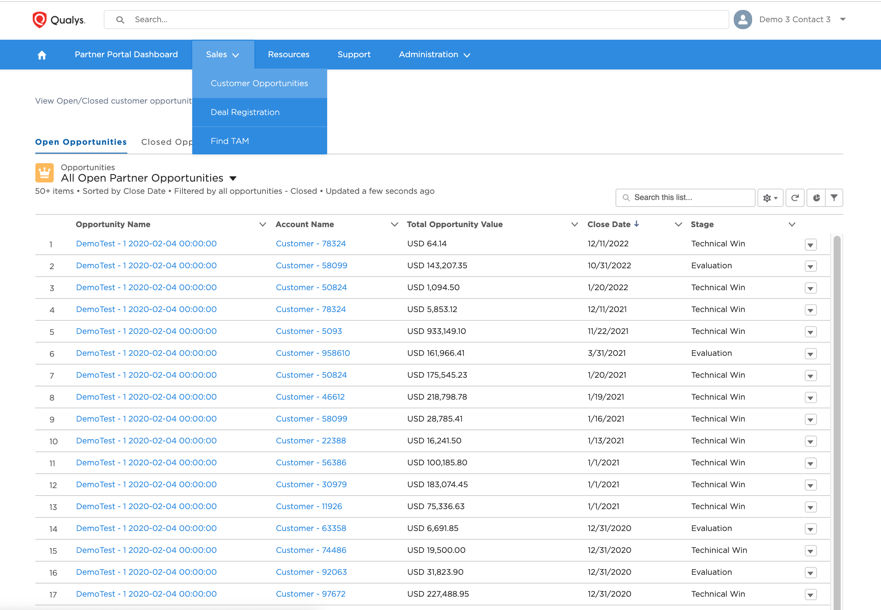
Next, we will navigate to the "Sales" tab. In this tab you will find a drop-down menu with three options. The first option is customer opportunities. In this section you will find all open and closed opportunities. This will help you to track the progress of these opportunities by having visibility into the Opportunity Value, Projected Close Date, and Stage.
4. Sales- Deal Registration
The Deal Registration section allows you to register net new business. Qualys utilizes deal registration to connect partners with our technical account managers who will assist partners in closing new opportunities. Registering net new business also protects partners from the Qualys direct team quoting at a discounted price. If a contact from a registered deal reaches out to Qualys directly, they will be quoted at MSRP pricing.
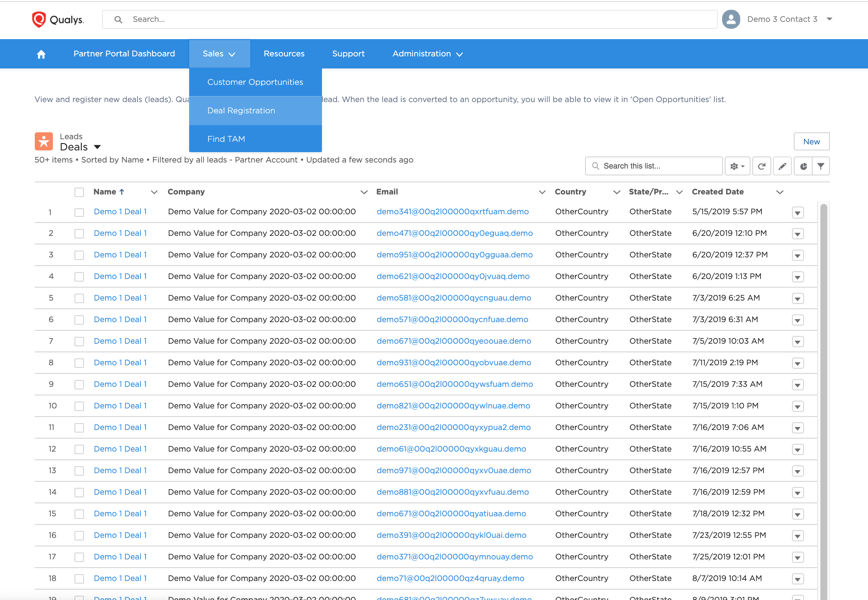
Once a deal has been converted into an opportunity it will no longer show on the deal registration page, it can then be found on the opportunities page.
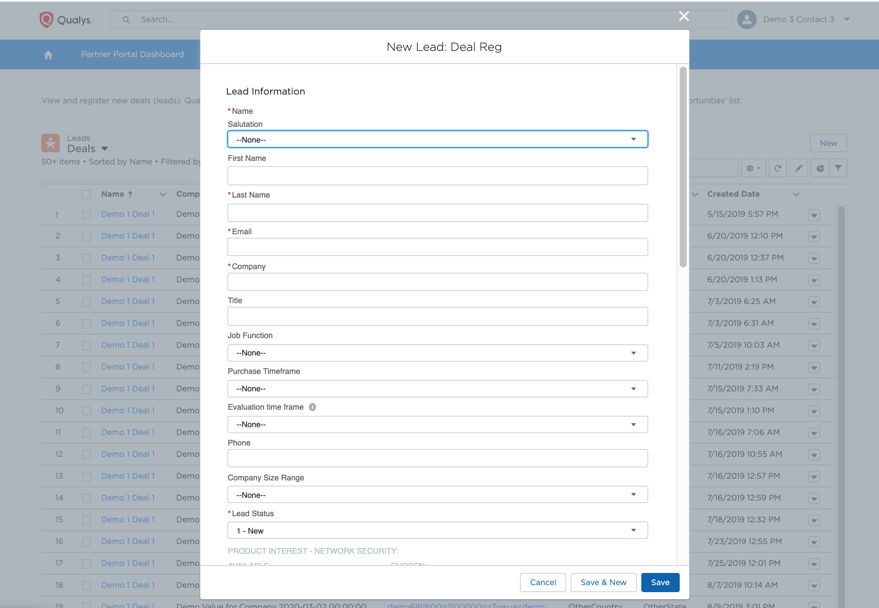
To register a new deal please click on the "New" button. This is located on the right side of the page above the deals chart.
This page will pop up once you have clicked on "New" you will then fill out the form with the end customers information. Typically, the more information you can provide will help our team identify the correct technical account manager to connect you with more quickly.
5. Sales- Find TAM
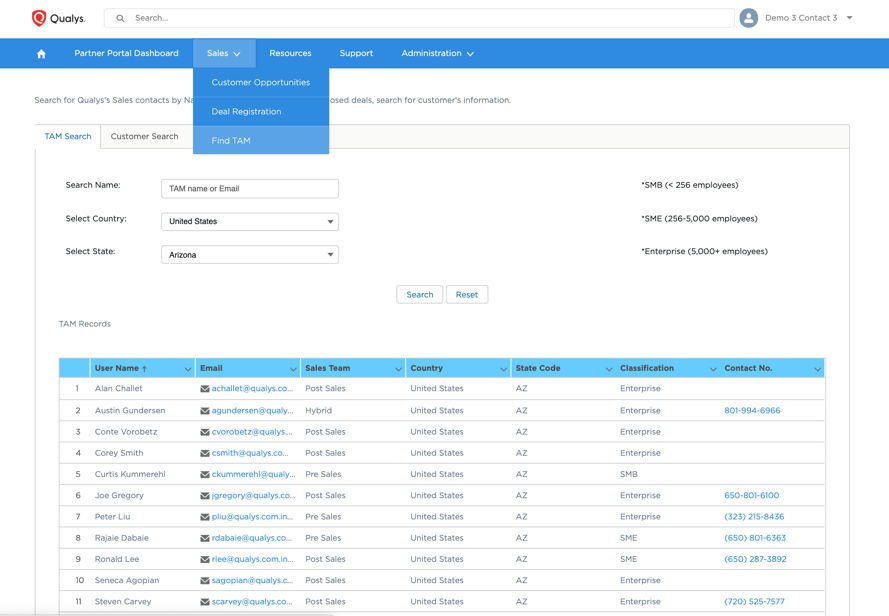
This section will help you to identify the correct TAM to reach out to when it comes to new and renewal opportunities. Here you can search for TAMs by name, country and state. Below you will see an example search of "United States" and "Arizona." Once you have clicked "Search" it will pull up the list of all TAMs who cover that region, their contact information and what classification they are. The classification identifies what size businesses they work in SMB (< 256 employees), SME (256-5000 employees), or Enterprise (5000+ employees).
6. Resources
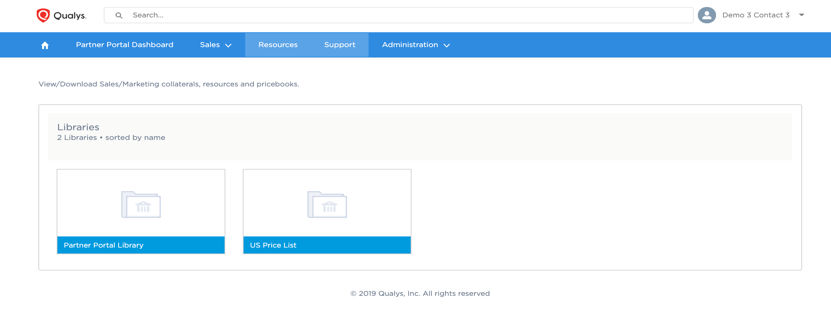
Next, we will navigate to the "Resources" tab. In this section you will have access to the latest training, marketing, and sales resources we have to offer our partners. This includes how to access our technical training where you can get certified in the Qualys platform, as well as tools such as our media kit, where you can find our approved logos that you can utilize to promote your partnership with Qualys.
In select regions of the world, this section will also be where you can find our latest partner approved price lists.
7. Administration
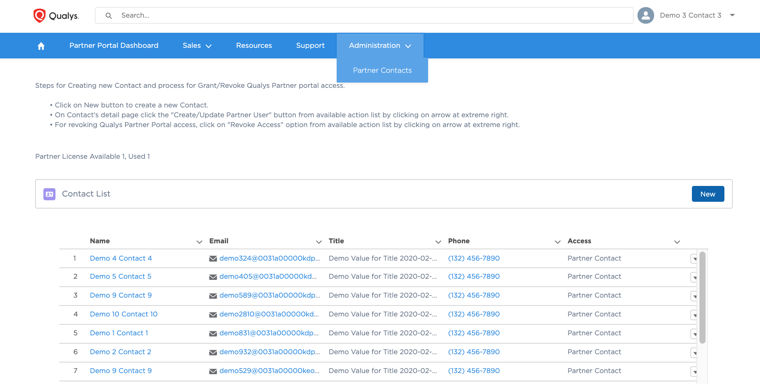
This tab will allow you to update your contact list. By doing this you can ensure that Qualys has the correct contacts for everything from sales, to billing, to shipping. By keeping this up to date it will improve communication in the partnership and prevent the Qualys team from reaching out to outdated contacts when a renewal, billing question or support case arises.
8. Support Portal
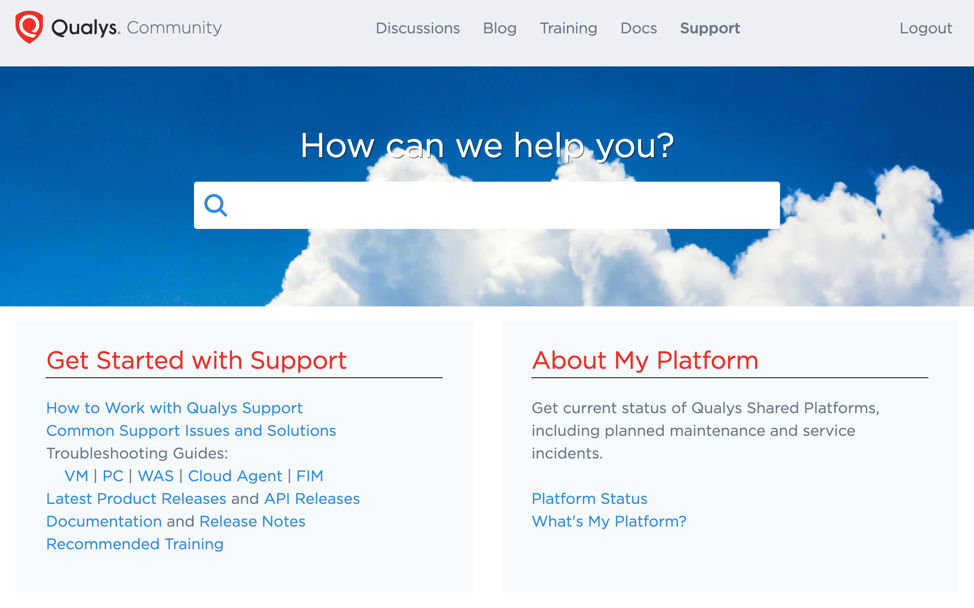
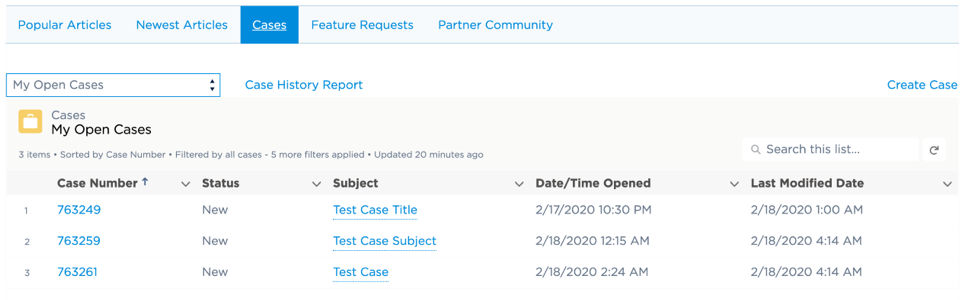
Clicking on the "Support" tab in the navigation bar will take you to a new portal. This portal is dedicated to support. Here you will be able to view your support tickets allowing you to keep track of their status, access popular support articles, and monitor feature request status.
9. Customer Support Portal- Case View
For more information on how to navigate and utilize the support portal, please refer to the links below:
Customer Support Portal User Guide
https://www.qualys.com/docs/qualys-customer-support-portal-user-guide.pdf
Blog article for Customer Support Portal
https://blog.qualys.com/news/2019/12/17/announcing-new-customer-support-portal-and-unified-search