Login FAQ.

Qualys Platform
Qualys Platform Status
How do I access the Qualys Platform?
To access your Qualys platform, ensure that you are using the correct login URL of your platform. To identify and access your Qualys Platform login URL, click here, as Qualys platforms have geographical significance. We recommend using the platform identifier in your Qualys username to determine your Qualys platform.
How do I check my Qualys Platform status?
You can refer to the Qualys Platform status page to see the functional status of all the Qualys Platforms and view the schedule of the upcoming maintenance.
Qualys Platform Credentials
Why do I get an "Invalid credentials" error?
Invalid credentials error arises when the username and password entered do not match the information stored in our database for your user profile. Make sure the information you entered is correct.
Note: Username and Password are case-sensitive
If the issue persists, contact your Point of Contact (POC) or Manager User within your subscription.
For more assistance, contact your Technical Account Manager (TAM) or call Qualys Support (refer to the Contact Qualys Support section).
I don't know my username. How can I find it?
If you do not know your username, then you can follow any of the below-given steps to gather your username:
Option 1 - You can find your username provided in the Welcome email from Qualys, which consists of your login URL and credentials.
Option 2 - Your username can be looked up in the Users section’s login column. Request your Manager User, POC, or another user in your account to look it up for you.
For more assistance, contact your Technical Account Manager (TAM) or call Qualys Support (refer to the Contact Qualys Support section).
Can I reset my password?
If you want to reset your password or have forgotten/lost it, follow the below steps.
To reset your password:
- If your user account is in an ‘Active’ state, then:
From your platform’s login page, click Forgot Password.

In the respective fields, enter the username and associated email address. Complete the Captcha process and click Send Email.
You will receive a password reset email with an activation link. Use the activation link to reset your password.
Enter the new password and confirm it in respective fields. Complete Captcha and click Submit.
This resets your password. Log in using the new password.
- If your user account is in ‘Inactive’ state, then:
Contact your POC or Manager User to activate your account. Once activated, refer to the section for Active state to reset the password.
If you are the only user in the subscription and unable to process Forget Password due to deactivation, contact your TAM or Customer Support (refer to Contact Qualys Support).
- If your user account is in an ‘Active’ state, then:
How do I change my password?
To change the password, perform the following steps:
Log into your Qualys Platform. Click Help
 > Change Password.
Enter current password and new password. Reconfirm new password.
Complete Captcha and click Save.
Click re-login and log in with the new password.

I am unable to complete the password reset process.
Contact your POC or Manager User to check if your account is activated. If it’s deactivated, ask them to activate it and initiate a reset process.
For more assistance, contact your TAM or call Qualys Support (refer to Contact Qualys Support).
Activation Link
I got an error message saying, "The activation key is not valid," when I clicked the activation link in my email. What does this mean?
During the password reset process, the password reset email consists of an activation link, which is a one-time-only link that redirects to reset/activate a new password. Once you click on the activation link, it gets activated. Upon this activation, you cannot use the same link again. This protects you in the event someone intercepts your email.
Double-clicking the link will cause it to deactivate. In this case, follow the instructions in the “Can I reset my password?" section to receive another email with a link to reset the password.
Additionally, many customers use third-party tools that can access one-time links and may cause them to deactivate new user registrations and password reset attempts. This can usually be resolved by ensuring that obmail.qualys.com is an allowlist in your network security protocols.
To read more, click here.
If the issue persists, contact your Technical Account Manager (TAM).
Qualys Account Status
To log in successfully, your account is required to be in an Active state.
If your account is in the Pending Activation state: Check if you have completed your account activation process, which is required to be completed before your first login.
If your account is in an Inactive state: Multiple failed login attempts can freeze your account, marking it as Inactive. Contact the Manager User to change the status of the account from Inactive to Active.
If you are the only user in a subscription and the account is marked with either an Inactive or Pending Activation state, then contact your Technical Account Manager (TAM) or Qualys Support (refer to the Contact Qualys Support section).
Contact Qualys Support
To Call Customer Support:
Visit Customer Support Portal.
Click Need Assistance.
Access the support contact numbers based on your location.
PCI Platform
Qualys PCI Platform Credentials
Why do I get an "Invalid Credentials" error?
Invalid credentials error arises when the username and password entered do not match the information stored in our database on your user profile. Make sure the information you entered is correct.
Note: Username and Password are case-sensitive
If the issue persists, then contact your Technical Account Managers or call Qualys Support (refer to the Contact Qualys Support section).
Can I reset my password?
If you have forgotten your password, you can reset it.
To reset your password:
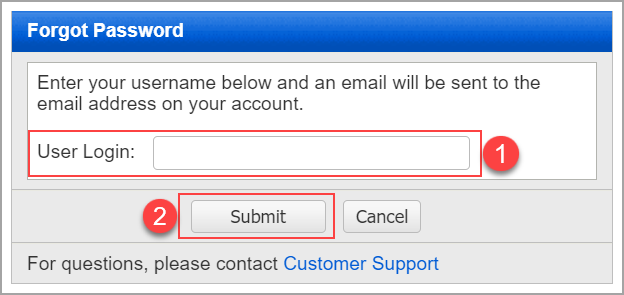
From your platform’s Login page, click Forgot Password.
Enter your username and click Submit.
You will receive an email with an activation link to reset password. Copy the link and open in the new tab (Do not click the link).
Access the User login ID and password. Copy it in a Notepad.
Open the PCI login link. Enter the copied user login ID and password in respective fields.
After performing the above-given steps, you will be able to log in with the provided password. Once you log in, you can change the password for yourself. Refer to the“How do I Change my Password” section below.
If you are the only user in the subscription and have lost your password, contact your Technical Account Manager (TAM) or call our Customer Support (refer to the Contact Qualys Support section).
I am unable to complete the password reset process.
Contact your POC or Manager User to check if your user account is activated while trying to reset your password. If it's deactivated, request the POC or Manager User to activate it and initiate a password reset process for you.
For further assistance, contact your Technical Account Manager (TAM) or call Qualys Support (refer to the Contact Qualys Support section).
How do I Change my Password?
To change the password, perform the following steps:
Log into the platform and go to Account Section > ClickEdit Icon. Locate your user profile > click on Edit Icon.

Click on the Change Password link. Enter the current password, new password and confirm new password > click Change and Logout.


After changing the password, you will be logged out. Using the new password log in back.
How do I Change the User Login?
To change the User Login, perform the following steps:
Log into the platform and go to Account Section > Click Users. Locate your user profile > click on the Edit icon.

Click the Change User Login link. Enter the current User Login, enter the new User Login, and confirm the new User Login > click Change and Logout. Enter the new user login name > click Change.


After changing the User Login, you will be logged out. Using the new User Login, log in back.
Activation Link
I got the error "The activation key is not valid" when I clicked on the activation link in my email. What does this mean?
The new activation link is a one-time-only link. Once the link has been activated, it cannot be reused.
If you are getting an "Activation Key is not valid" error for PCI account activation, you can use the " Forgot Password” option from the login page. Alternatively, you can ask your POC or Manager User to reset the password. This will allow you to receive an email with a new activation link.
Once you receive the Password Reset email, perform the following steps:
Copy the password reset/activation link and open it in the new tab. (Do not click the link.)
You will get a User login ID and password. Copy that User login ID and password into a Notepad.
Open the PCI login link in a new tab.
Enter the copied user login ID and password and paste it in the respective fields that you copied on Notepad previously.
After performing the steps above, you will be able to log in using the provided password. Once you log in, you can change the password for yourself. Refer to the“How do I Change my Password” section below.
Qualys Account Status
To log in successfully, your account is required to be in an Active state.
If your account is in Pending Activation state: Check if you have completed your account activation process, which is required to be completed before your first login.
If you are the only user in a subscription and the account is marked with a Pending Activation state, contact Qualys Support (refer to the Contact Qualys Supportsection).
Contact Qualys Support
To Call Customer Support:
Visit Customer Support Portal.
Click Need Assistance.
Access the support contact numbers based on your location.